
Home / Auto Captions / DUKE Captions
Auto captions for DaVinci Resolve
One click. Resolve's built-in AI transcribes your voice, DUKE Captions writes word-timed captions onto a new track and styles them automatically. Karaoke words light up as they are spoken, and the captions stay inside the frame.
Needs DaVinci Resolve Studio 20 or newer (uses Resolve's built-in AI transcription). Not for the free version.
Get every DUKE effect: DUKE FX MASTER BUNDLE $49.99
Try it free Want to try first? Get DUKE Captions Lite free
Tested on a Mac with DaVinci Resolve Studio 21. Windows is not tested yet.
Includes all 57 DUKE Text titles.
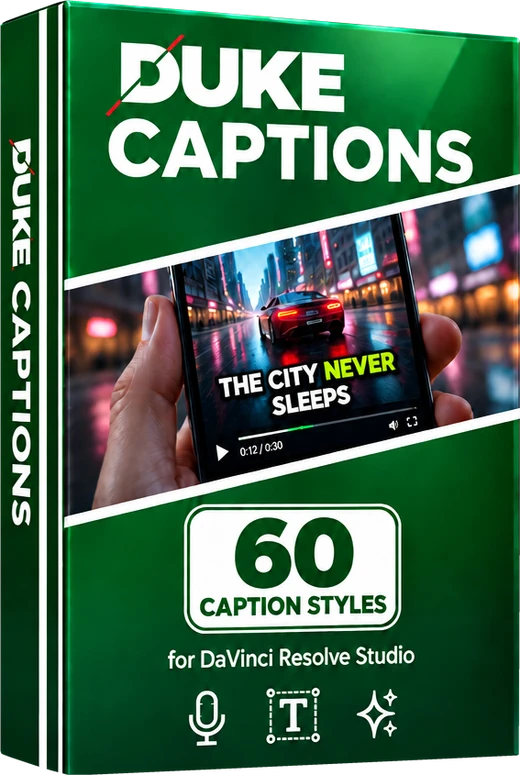 DUKE Captions
60 caption styles, one time
See auto captions in 12 seconds
Real captions made with DUKE Captions in DaVinci Resolve. Sound on.
How it works: 4 steps, fully automatic
Real screenshots of the plugin in DaVinci Resolve Studio. You pick a style and press one button.
-
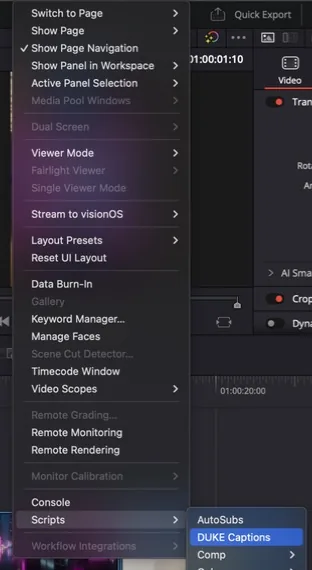
Open it
In DaVinci Resolve choose Workspace, Scripts, DUKE Captions. The DUKE Captions panel opens.
-
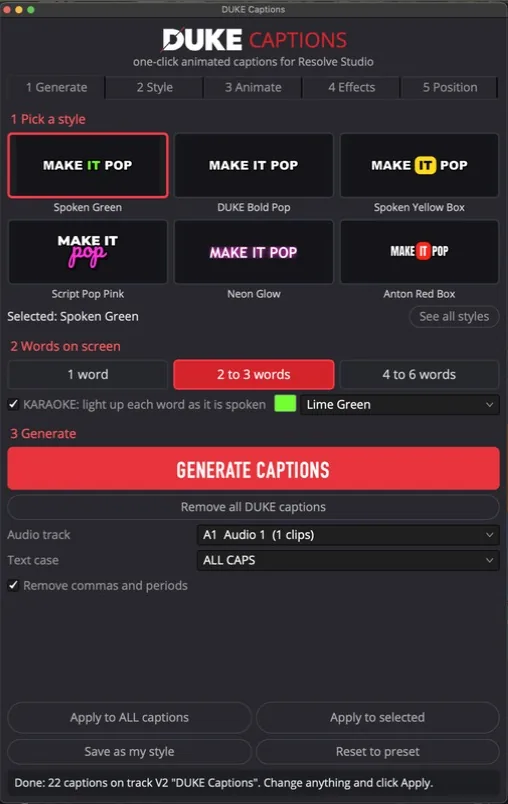
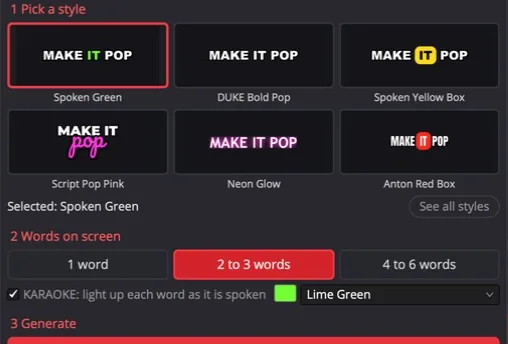
Pick a style and how many words on screen
Choose one of 60 styles by its picture, then 1 word, 2 to 3 words or 4 to 6 words at a time. Karaoke can be on or off.
-
Click Generate Captions
That is the whole job. It transcribes your audio, writes every caption, times it to each word and places it on its own track. Nothing to type, no subtitle file to import.
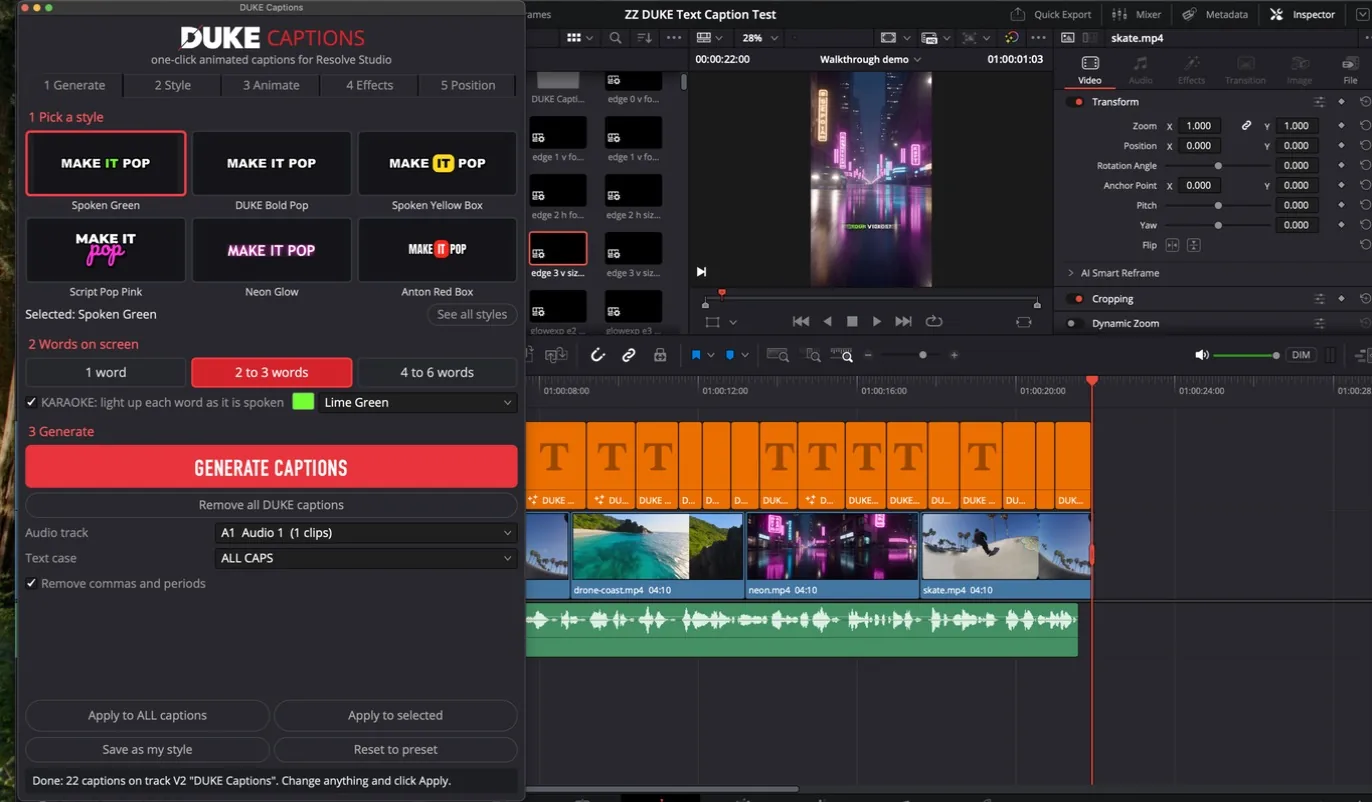
-
Change the look in one click, or fix one word
Pick another style and Apply to ALL captions restyles every caption at once. To fix a word, click the caption and edit Caption Text in the Inspector.
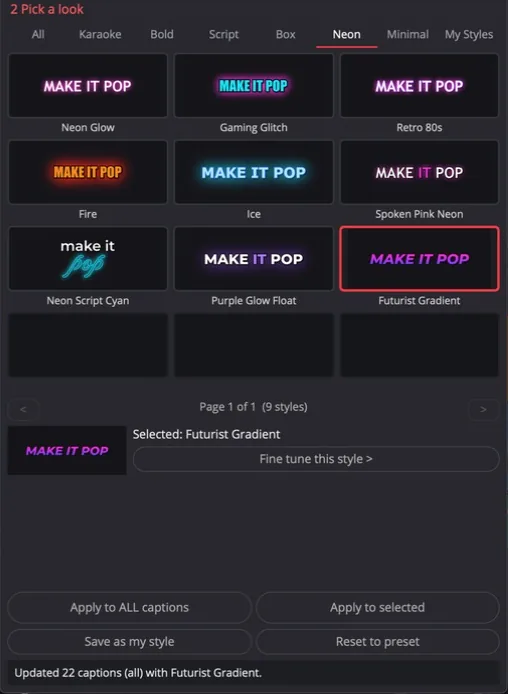
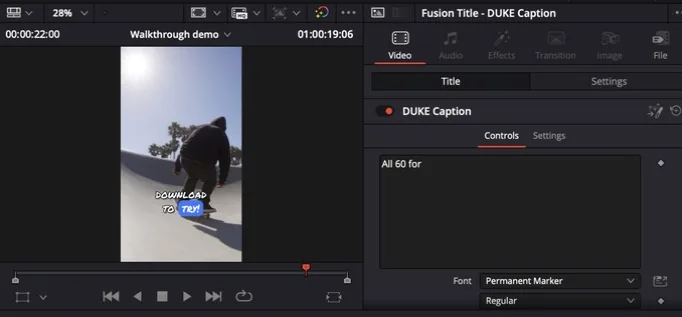
These are real screenshots of the plugin in DaVinci Resolve Studio.
What happens automatically
You press one button. The plugin does all of this.
- TranscriptionResolve's built-in AI listens to your audio and writes the words. You do not type them.
- Word timingEvery word is timed to the moment it is spoken.
- Line breaksWords are grouped into short, readable captions: 1 word, 2 to 3 words or 4 to 6 words at a time.
- Karaoke highlightEach word lights up as it is spoken.
- Stays in the frameCaptions are kept inside the picture on vertical and horizontal video, at any size.
- One style for allApply a style to every caption at once, or only to the ones you select.
- Remove and re-generateRemove all DUKE captions, change a setting, and generate again.
Watch the walkthrough
See DUKE Captions work, start to finish, in about two minutes.
One clip, 60 looks
Real rendersThe same footage and voice, restyled in Resolve. Modern styles first. Hover a tile on desktop to play it, or scroll on your phone. The pack has 60 styles in all, shown by picture further down.
-
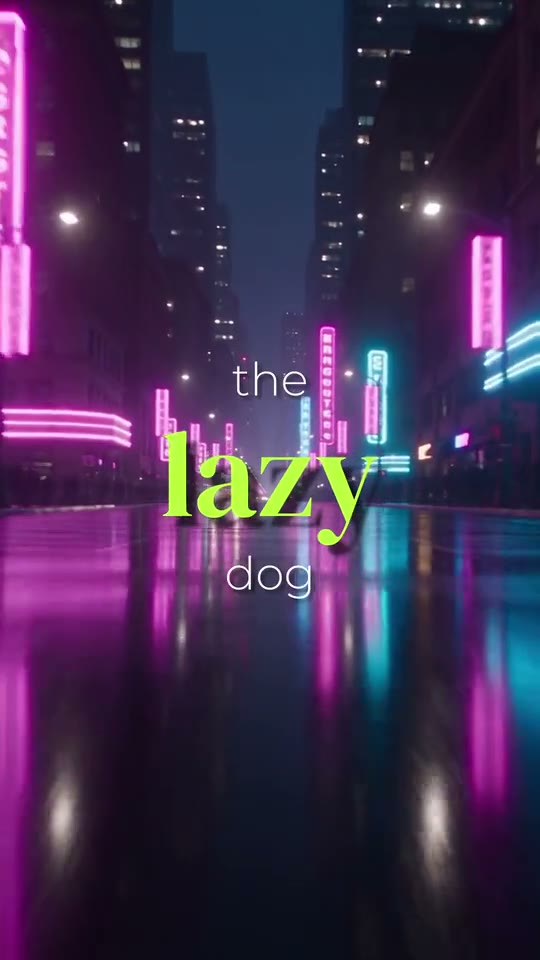
Hero Serif Lime
-
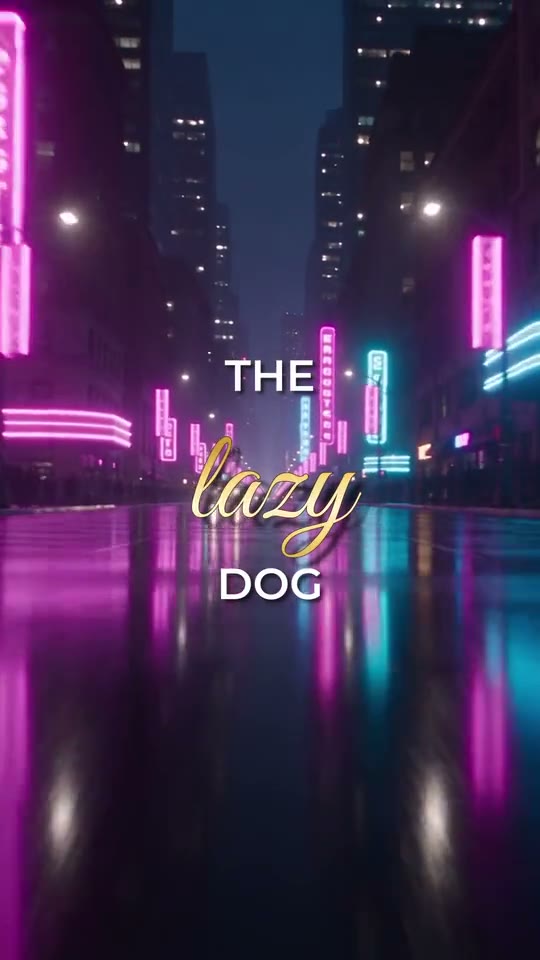
Gold Metallic Script
-
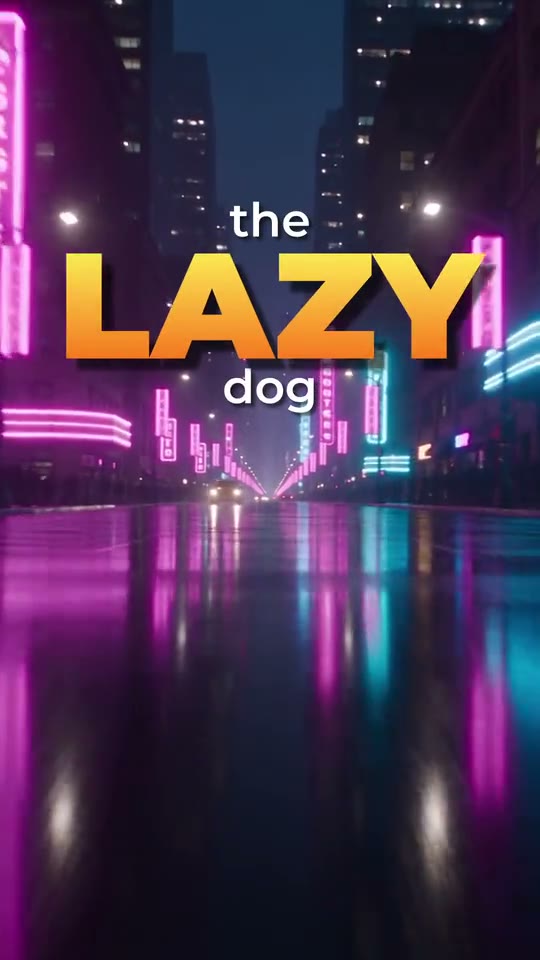
Hero Gradient Yellow
-
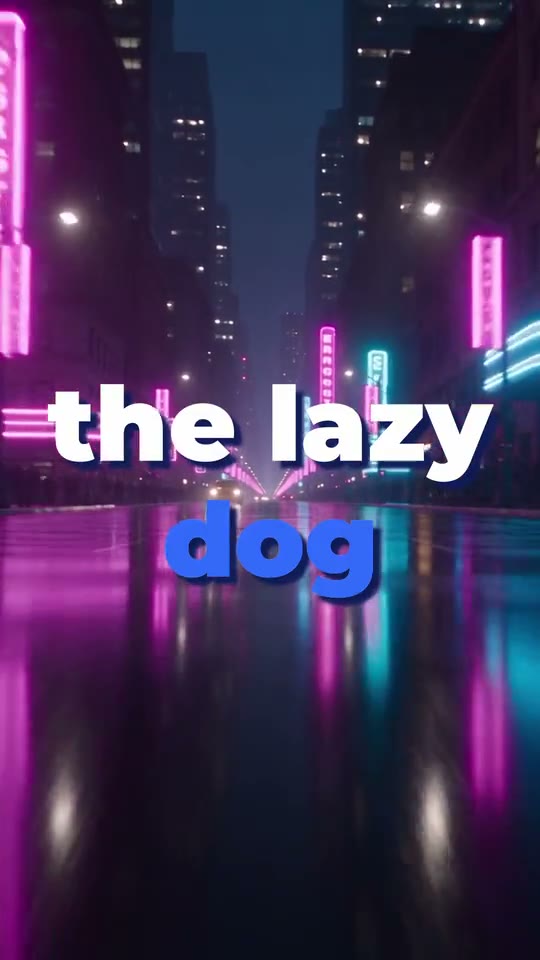
Blue 3D Pop
-
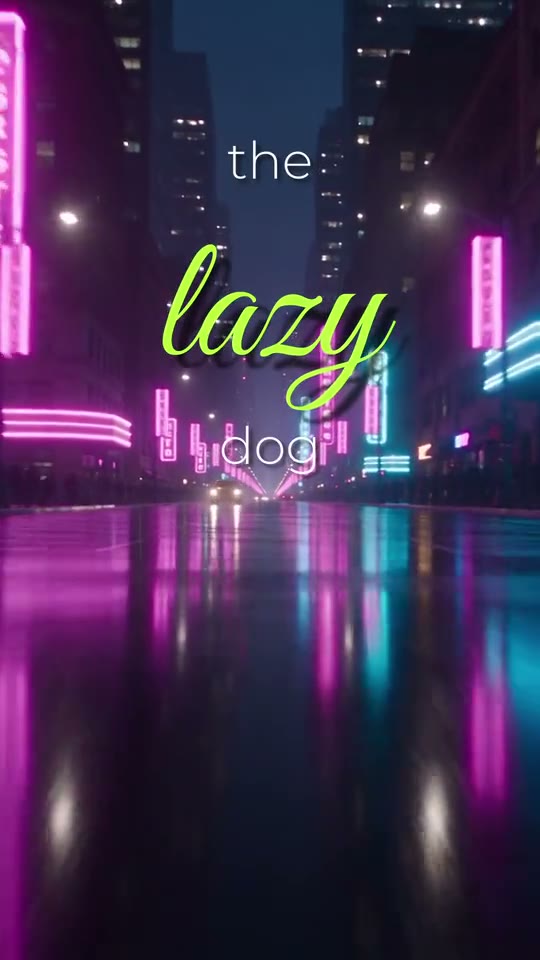
Script Kiss
-
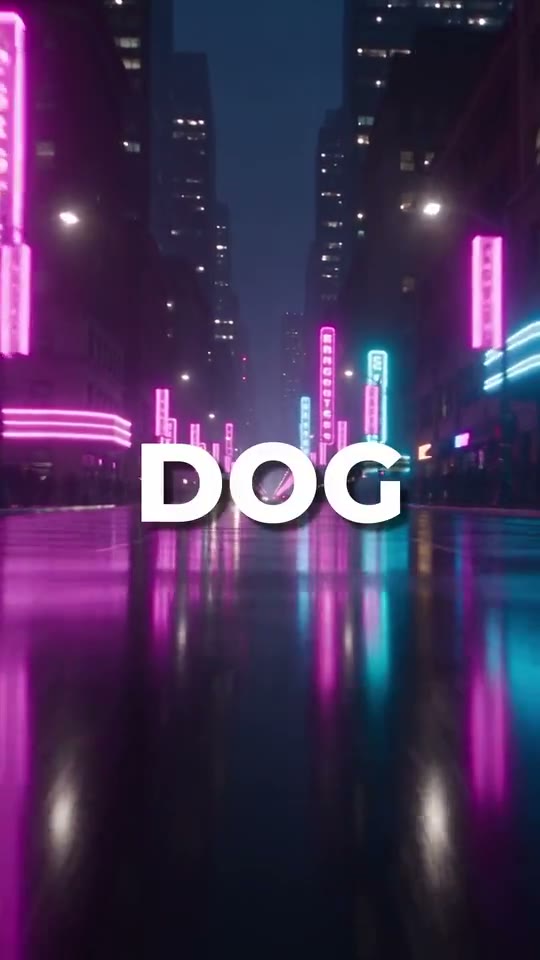
Big Clean White
-
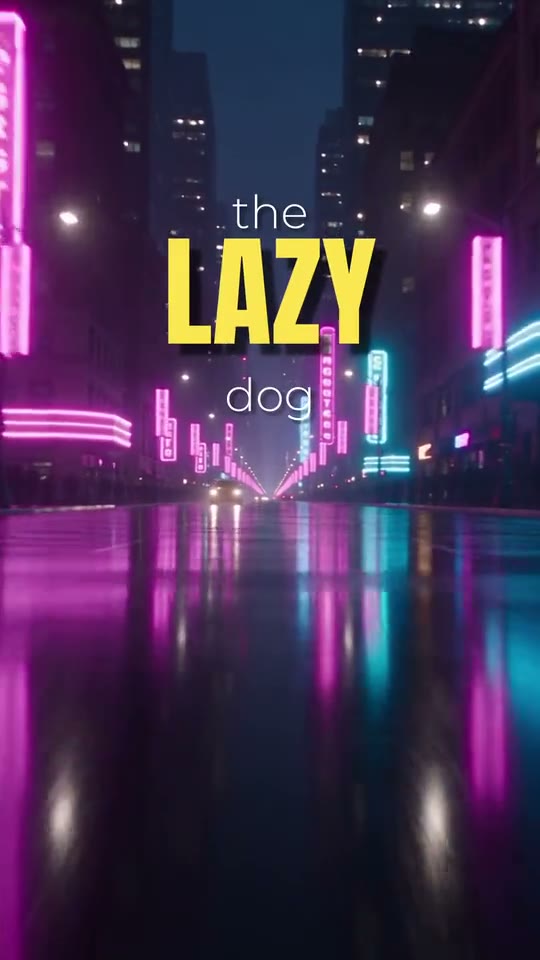
Condensed Yellow Stack
-
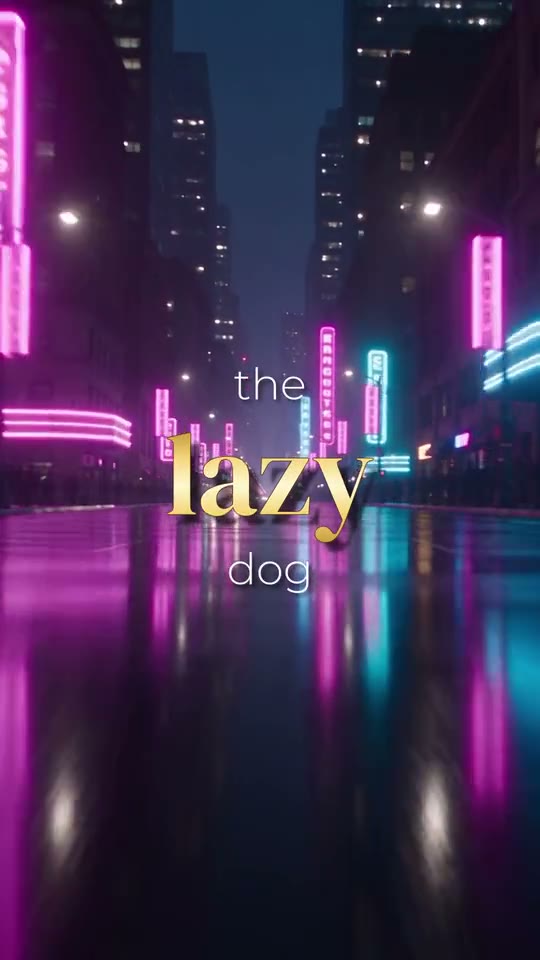
Gold Metallic Serif
-
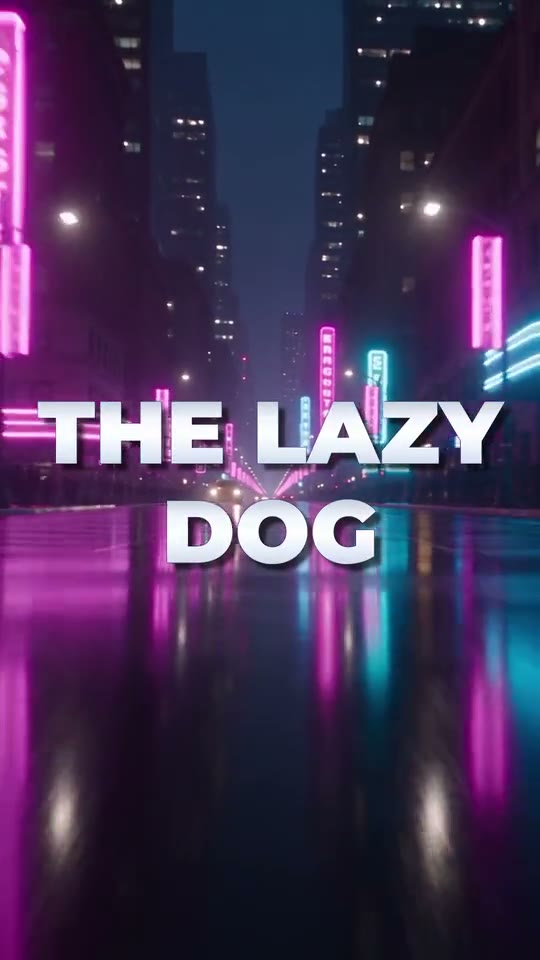
Silver Metallic
-
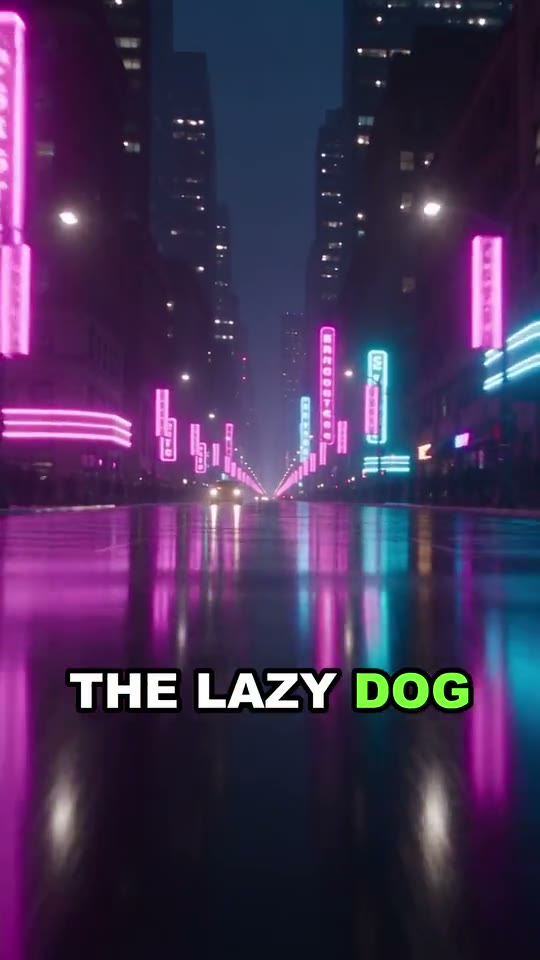
Spoken Green
-
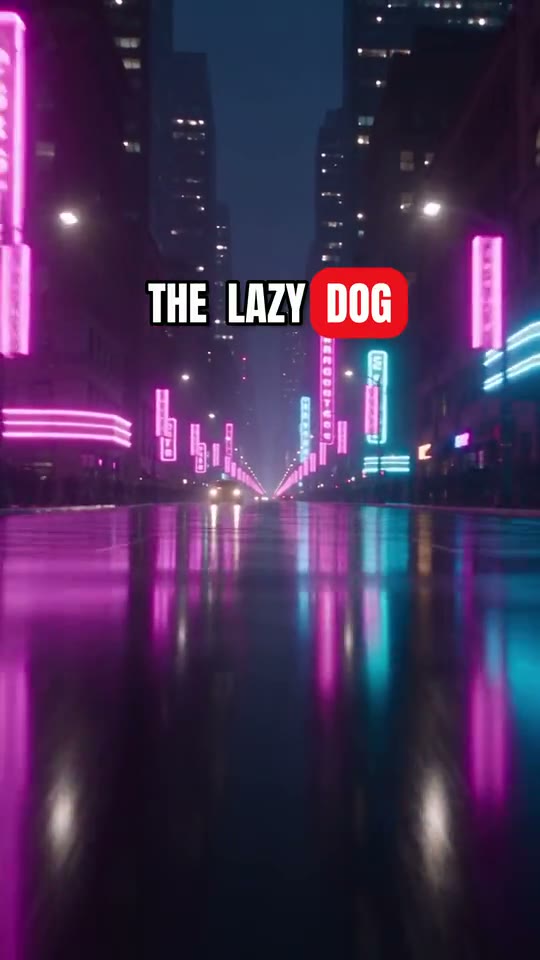
Anton Red Box
-
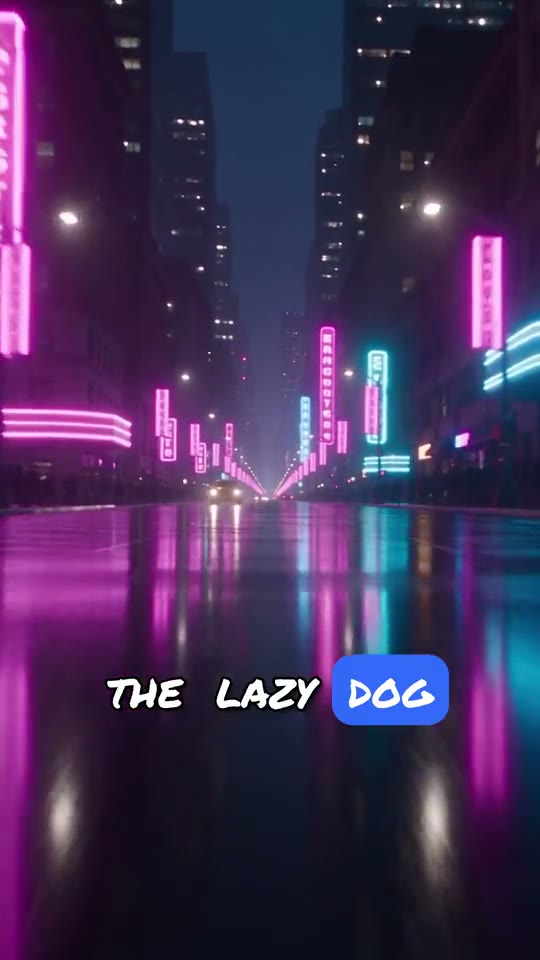
Marker Note Blue
-
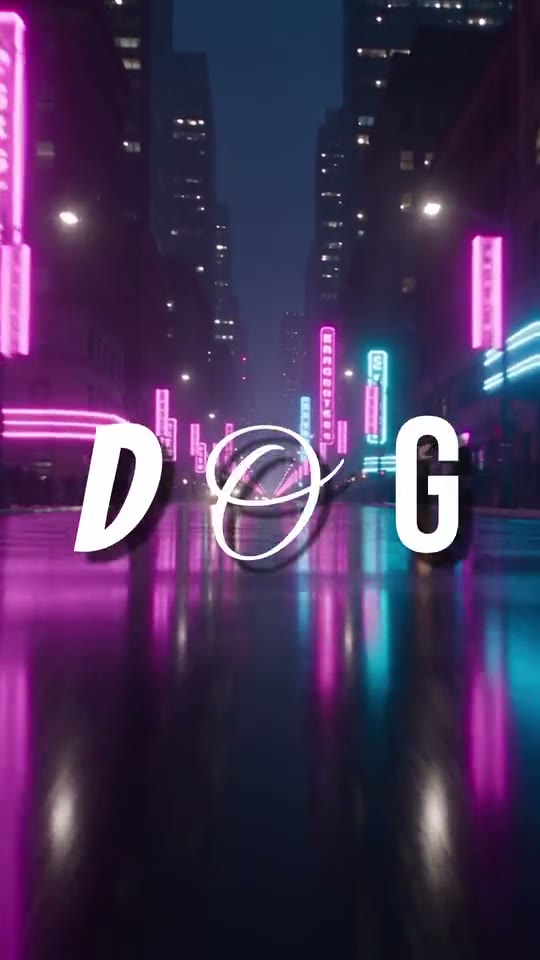
Font Scramble
Put it anywhere
Top, center or bottom. The same clip and style.
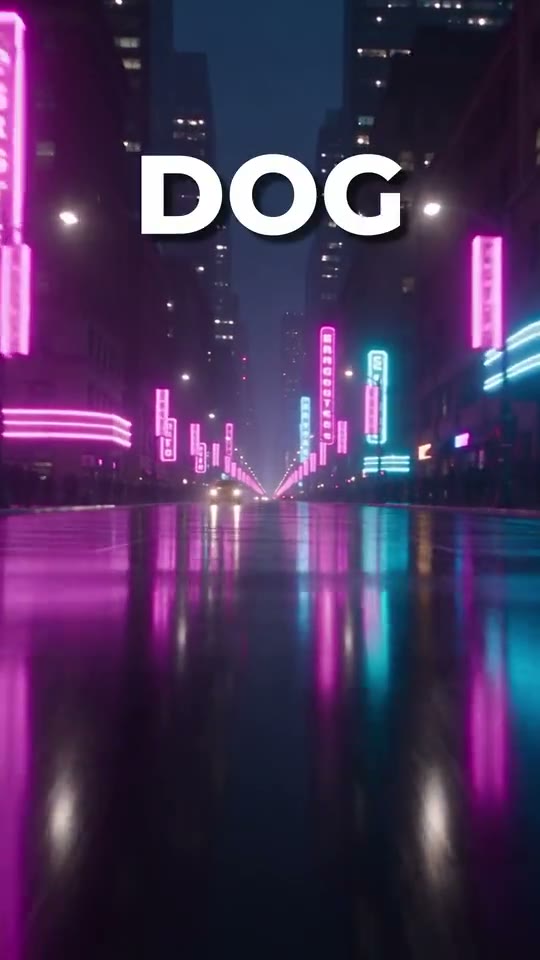
Top
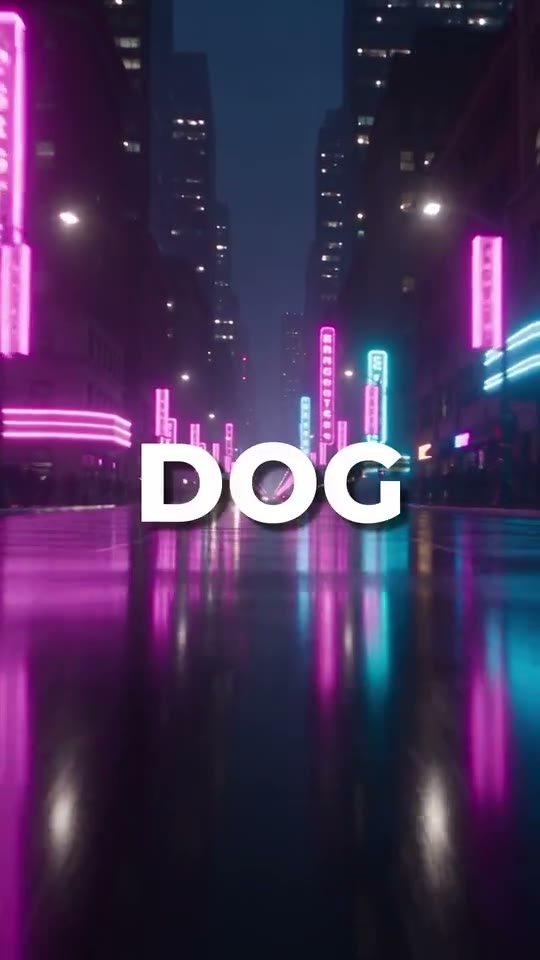
Center
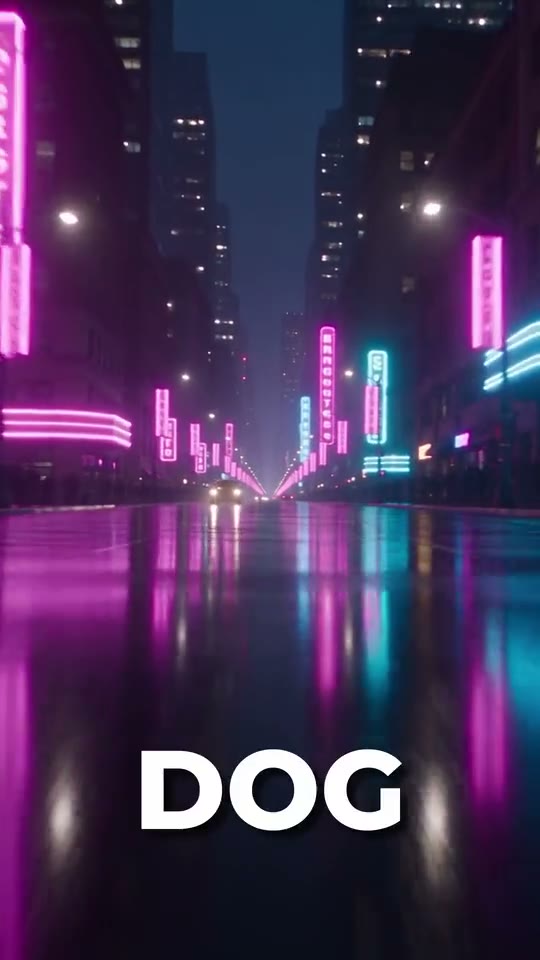
Bottom
Modern styles
Hero words, font mixing, gradients and brighter metallic looks.
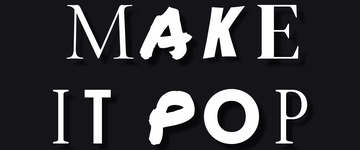 Font Scramble
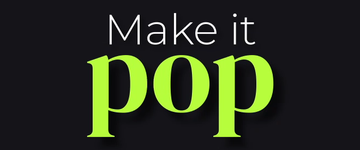 Hero Serif Lime
 Script Kiss
 Big Clean White
 Condensed Yellow Stack
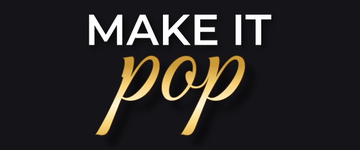 Gold Metallic Script
 Gold Metallic Serif
 Hero Gradient Yellow
 Blue 3D Pop
 Typing Reveal
 Lowercase Lime Glow
 Silver Metallic
 Thin + Heavy Mix
What you get
- One click: Resolve's built-in AI transcription writes word-timed captions onto a new track called DUKE Captions
- 60 caption styles
- Pick styles by picture, in 7 categories (Modern, Karaoke, Bold, Script, Box, Neon, Minimal), plus a My Styles tab for your own
- Karaoke: each word lights up as it is spoken
- 18 in-animations, 8 out-animations and 6 loops
- Stroke, drop shadow, glow and background box effects
- Fonts included and installed for you (15 font families, incl. script and handwritten)
- Free Lite version with 11 styles. Unlock all 60 inside the plugin.
- Top, center or bottom placement, plus custom positioning
- Gradients, metallic looks and accent words
- Change any color in Fine tune this style
- Apply to ALL captions, or Apply to selected
- Save as my style keeps your own look
- Captions always stay inside the frame, on vertical and horizontal video, at any size
- Fix a typo by editing Caption Text in the Inspector
Plus 57 drag-in titles
The titles come with your purchase. No extra cost.
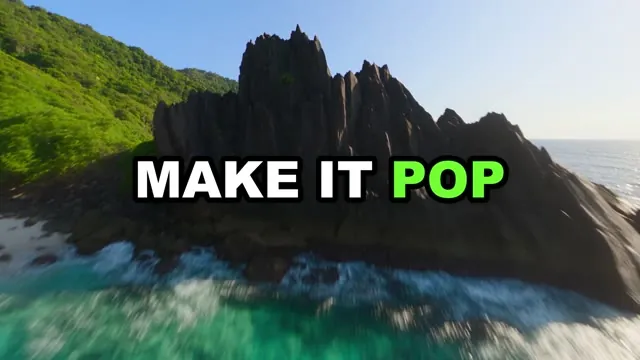 DUKE Spoken Green
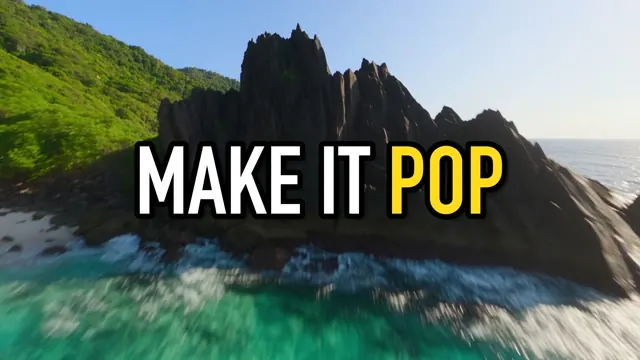 DUKE DIN Spoken Yellow
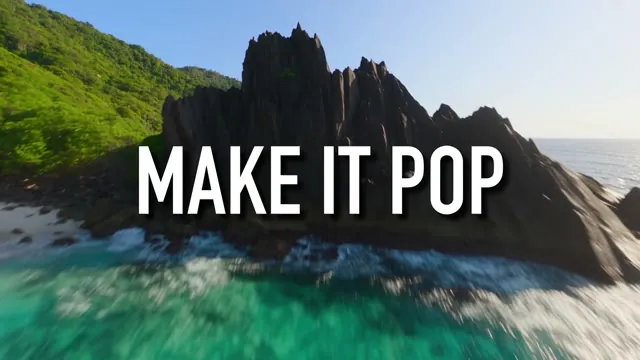 DUKE DIN Clean White
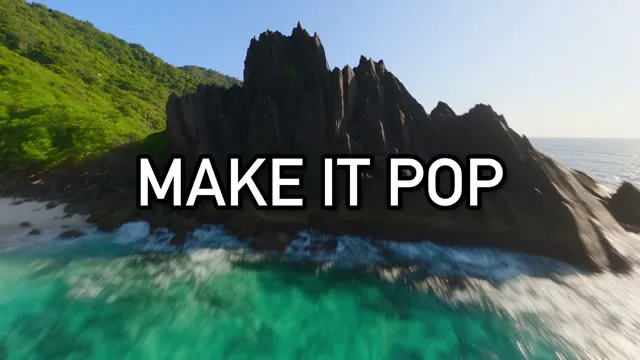 DUKE DIN Alternate Bold Pop
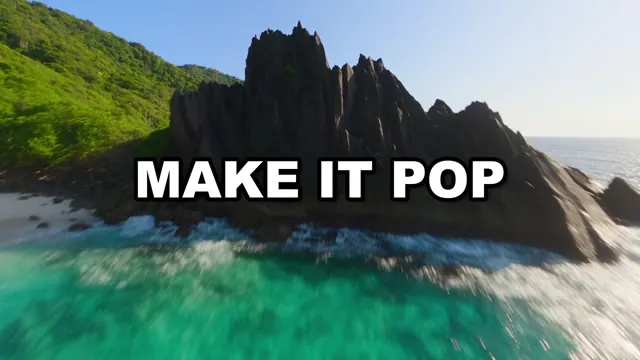 DUKE Bold Pop
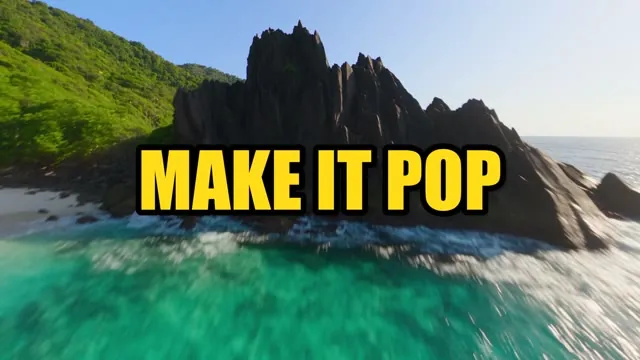 DUKE Yellow Punch
Every caption look also comes as a title you drag onto the timeline yourself. Titles work in the free version of DaVinci Resolve. See all 57 titles
Start with Lite
11 free styles, unlock the other 49 inside the plugin.
Big Clean White is ready when you open the panel. Free styles appear first; locked styles are greyed out.
Try it freeAll 60 styles
By pictureThis is how every style looks in the panel, sorted by category. A few styles fit two categories and are shown once.
Modern 13
- Font Scramble
- Hero Serif Lime
- Script Kiss
- Big Clean White
- Condensed Yellow Stack
- Gold Metallic Script
- Gold Metallic Serif
- Hero Gradient Yellow
- Blue 3D Pop
- Typing Reveal
- Lowercase Lime Glow
- Silver Metallic
- Thin + Heavy Mix
Karaoke 7
 Spoken Green
 DIN Spoken Yellow
 Hormozi Green
 Karaoke Yellow
 Spoken Green Glow
 Spoken Yellow
 Spoken Cyan
Bold 11
 DIN Alternate Bold Pop
 DUKE Bold Pop
 DUKE Yellow Punch
 Beast Bounce
 Outline Only
 Comic Pop
 Comic Blue Bounce
 Sticker Orange
 Retro Pink Italic
 Clean Blue Gradient
 Sunset Gradient
Script 5
 Script Pop Pink
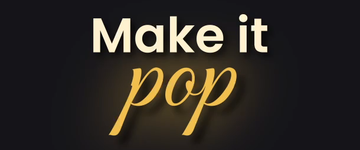 Signature Gold
 Brush Fire Orange
 Neon Script Cyan
 Old Money
Box 8
 DUKE Red Box
 Podcast Box
 Highlight Marker
 Spoken Green Box
 Spoken Yellow Box
 Spoken Purple Box
 Marker Note Blue
 Anton Red Box
Neon 8
 Neon Glow
 Gaming Glitch
 Retro 80s
 Fire
Fire Ice
Ice Spoken Pink Neon
 Purple Glow Float
 Futurist Gradient
Minimal 8
 DIN Clean White
 Elegant Serif
 Gold Luxe
 Spoken Gold Serif
 Spoken Clean (no outline)
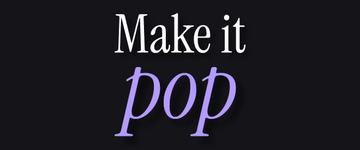 Editorial Italic Lavender
 Quiet Lowercase
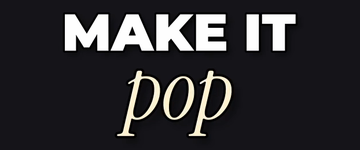 Magazine Mix
Questions
Does DUKE Captions work in the free version of DaVinci Resolve?
No. DUKE Captions needs DaVinci Resolve Studio 20 or newer. It uses Resolve's built-in AI transcription to turn your speech into words with timing, and that feature is part of Studio, so the free version of Resolve cannot generate the captions. DUKE Captions was tested on a Mac with DaVinci Resolve Studio 21.
Is it automatic?
Yes. You pick a style and click Generate Captions. Resolve's AI transcribes your voice, and DUKE Captions times every word, breaks it into lines, styles it and places it on a new track, all by itself.
After that you can restyle every caption in one click, or fix a single word in the Inspector. Both are optional.
How do I fix a typo?
Click the caption on the timeline and edit Caption Text in the Inspector.
Can I change only some captions?
Yes. Cmd-click or Ctrl-click the captions you want on the timeline, or mark In and Out around them, then click Apply to selected. Apply to all changes every caption at once.
Is Windows supported?
Windows is not tested yet. Tested on Mac with DaVinci Resolve Studio 21.
Can I change the colors?
Yes. Open Fine tune this style, choose text and accent colors, then Apply to ALL captions or Apply to selected.
How do I unlock every style?
Start with 11 free styles. Buy the full version and paste the code from the thank-you page or receipt into the plugin. The other 49 styles unlock without reinstalling.
Do captions go off screen?
No. Captions always stay inside the frame, on vertical and horizontal video, at any size.
Get DUKE Captions for $20
Needs DaVinci Resolve Studio 20 or newer. Not for the free version.