
Home / Premiere Pro / DUKE Zoom for Premiere Pro
DUKE Zoom for Premiere Pro
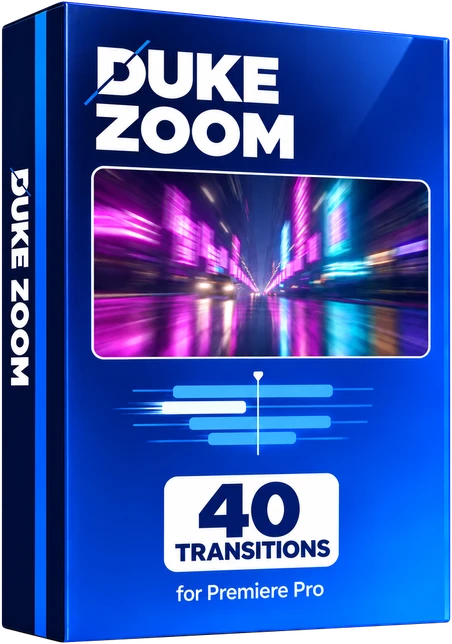
40 transitions for Adobe Premiere Pro, from the full pack of 200. Zoom punches, snaps, warps, spins and corner zooms. Built and tested in Premiere Pro 2026 on a Mac.
Want to try first? Try 10 free
Watch all 40 below before you decide. Hover a tile on desktop, or scroll on your phone.
How it works
These are Premiere Pro presets. Each one goes on an adjustment layer over a cut.
- Install it once. Unzip the download. In Premiere Pro, right-click Presets in the Effects panel, choose Import Presets and pick DUKE Zoom for Premiere.prfpset. It takes about one minute. The 40 transitions appear under Presets in the folder DUKE Zoom.
- Put an adjustment layer over the cut. Choose File > New > Adjustment Layer, then place it over the cut, centred on the cut and 1 second long, which is 24 frames at 24 frames a second (12 before the cut, 12 after). Shortest 12 frames, longest 48.
- Drag a DUKE transition onto it. That is it.
- Shorter is faster, longer is slower. The transition stretches to the length of the adjustment layer.
Full guide: install, use and how many frames
- One preset eachOne preset per transition. No nesting, no extra clips, no keyframing.
- Nothing else to installBuilt only with effects that come with Premiere Pro.
- Change anythingEvery transition can be changed in Effect Controls. Its effects and keyframes are listed by name.
- Frame sizeMade at 1920 x 1080 in 16:9. Moves, zooms and spins scale with any frame size. Blur and wave amounts are set in pixels.
The better deal
All 200 transitions in one pack for $39.99 $59.99
The six packs bought one by one come to 6 x $10.00 = $60.00. This pack's 40 transitions are part of the full pack.
Zoom
40 transitions-
Zoom Punch
Punches in through the cut.
-
Zoom Punch SoftFree
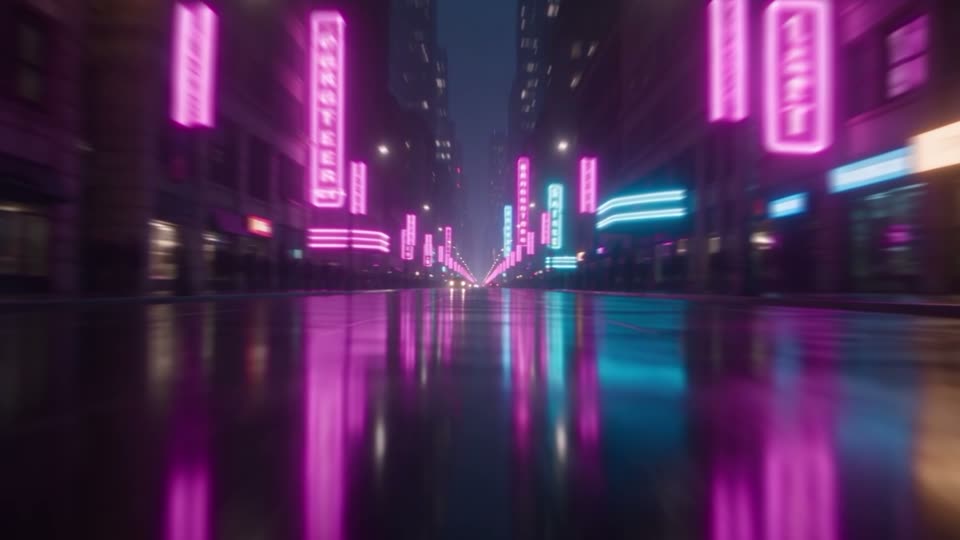
A gentle push in through the cut.
-
Zoom Punch Hard
A heavy, fast punch in.
-
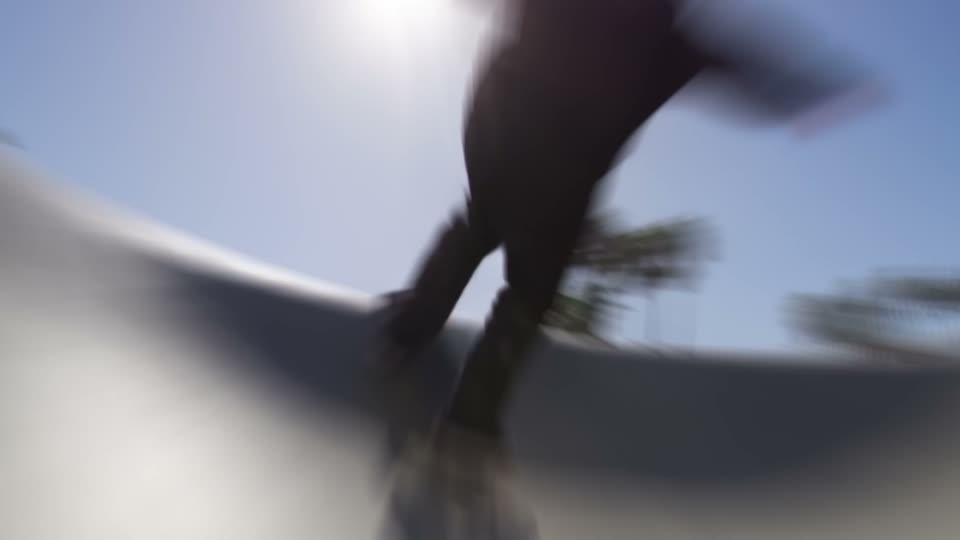
Zoom Snap
A very quick snap zoom right on the cut.
-
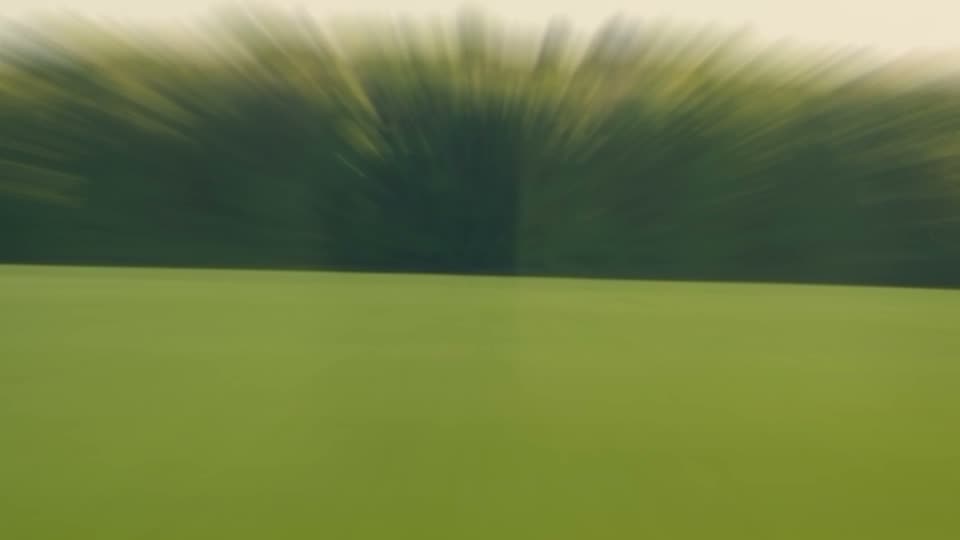
Zoom In
Zooms far into A, B settles from just above full size.
-
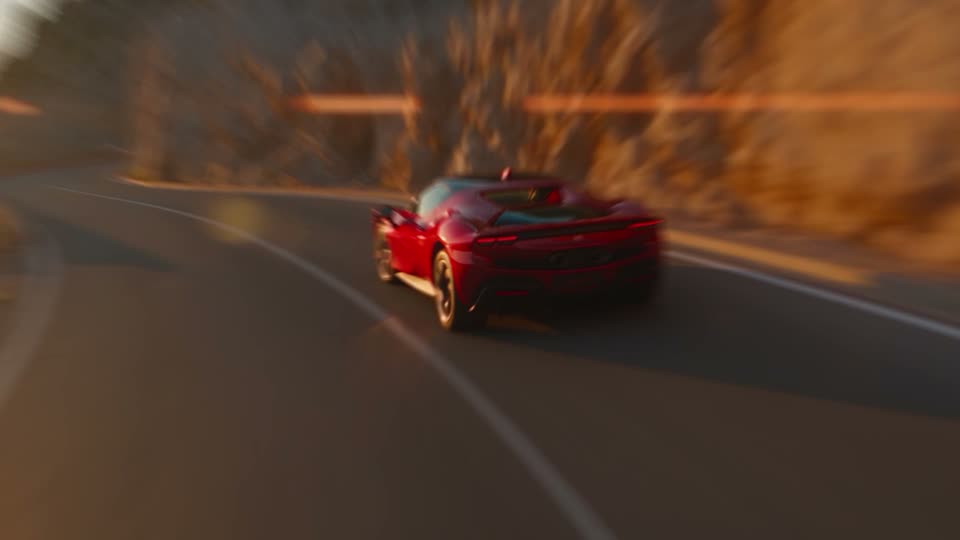
Zoom Out
A lifts off, B pulls back from far in.
-
Zoom Blur
Soft blurred push through the cut.
-
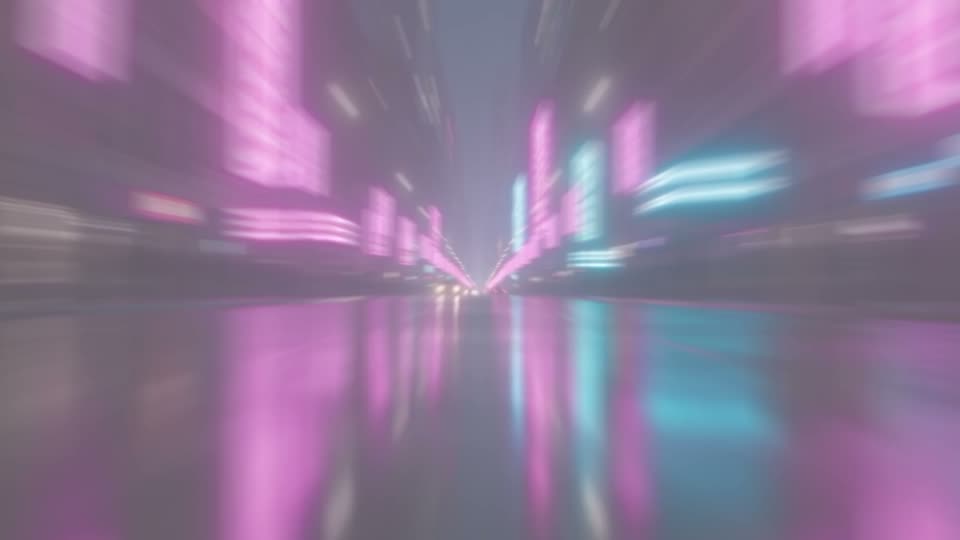
Zoom Flash
Punch in with a white flash.
-
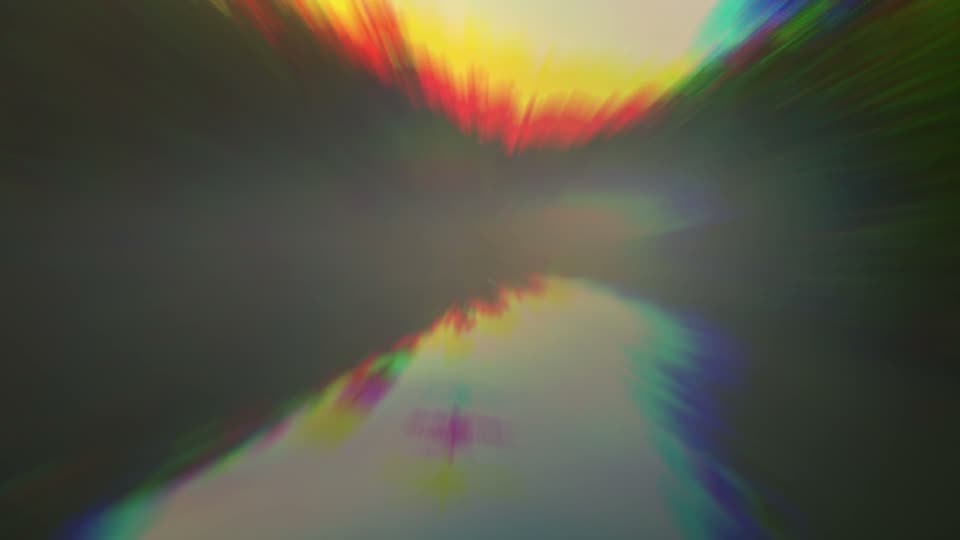
Zoom Chroma Punch
Punch in with RGB colour fringes.
-
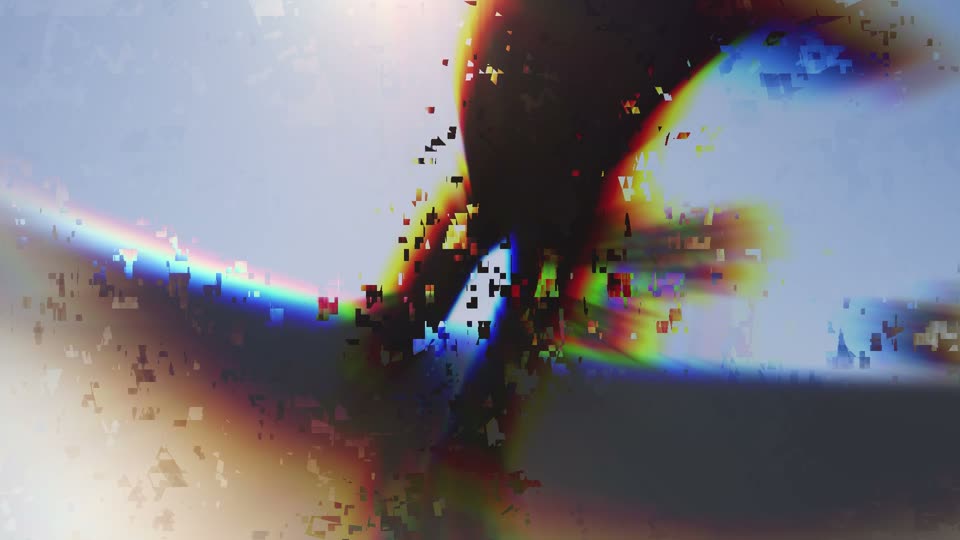
Zoom Glitch
Punch in with a digital glitch burst.
-
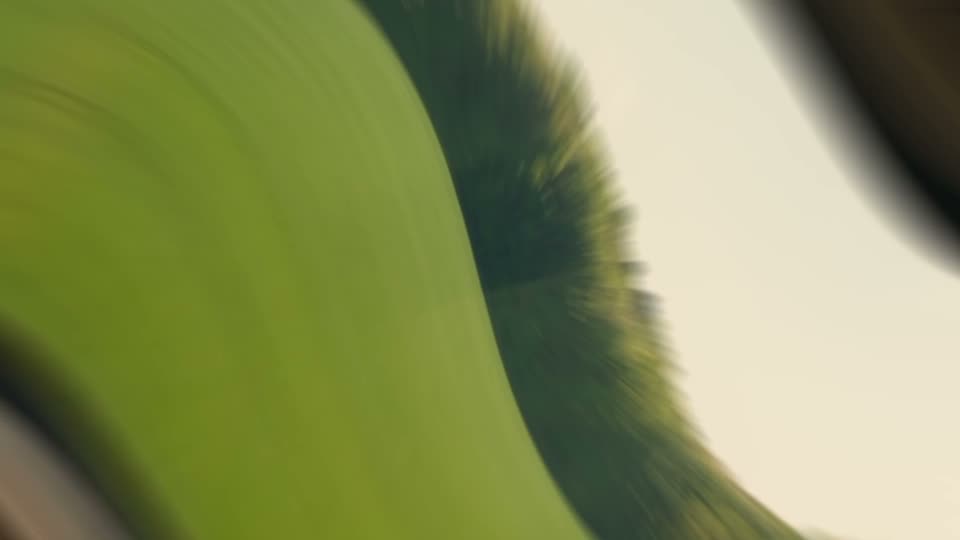
Zoom Twirl
Punch in with a twist.
-
Zoom Warp
Punch in through a warping lens.
-
Zoom Spin Left
Punch in while turning left.
-
Zoom Spin Right
Punch in while turning right.
-

Zoom Shake Punch
Punch in that lands with a shake.
-
Zoom Double Punch
Two punches: a small one, then the big one on the cut.
-
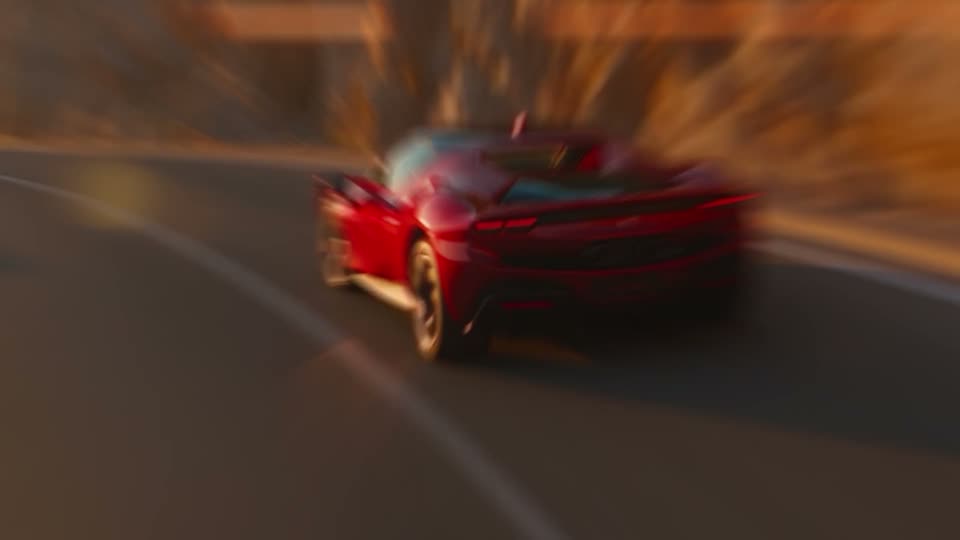
Zoom Elastic
Punches in and springs back with a bounce.
-
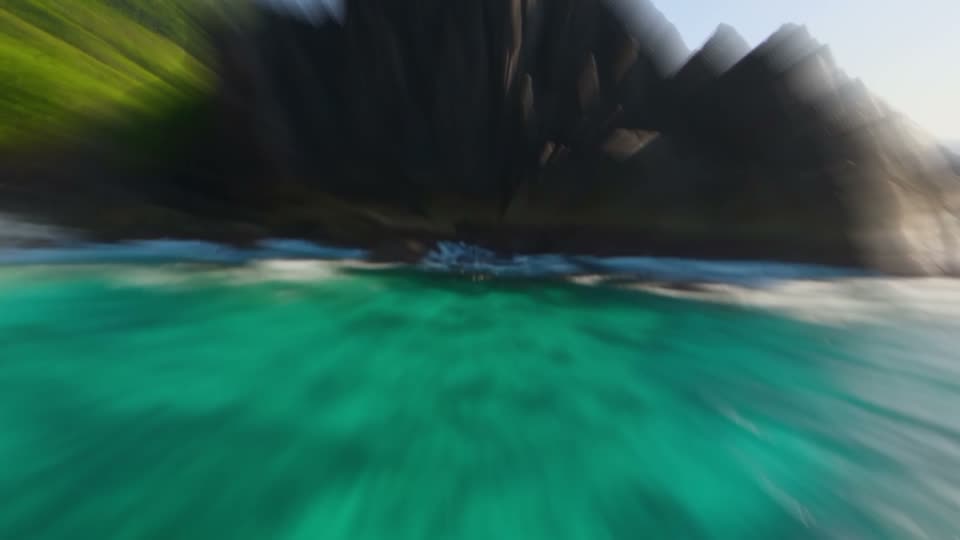
Zoom Heartbeat
Two quick pulses, like a heartbeat.
-
Zoom Corner Top Left
Punches in toward the top left corner.
-
Zoom Corner Top Right
Punches in toward the top right corner.
-
Zoom Corner Bottom Left
Punches in toward the bottom left corner.
-
Zoom Corner Bottom Right
Punches in toward the bottom right corner.
-
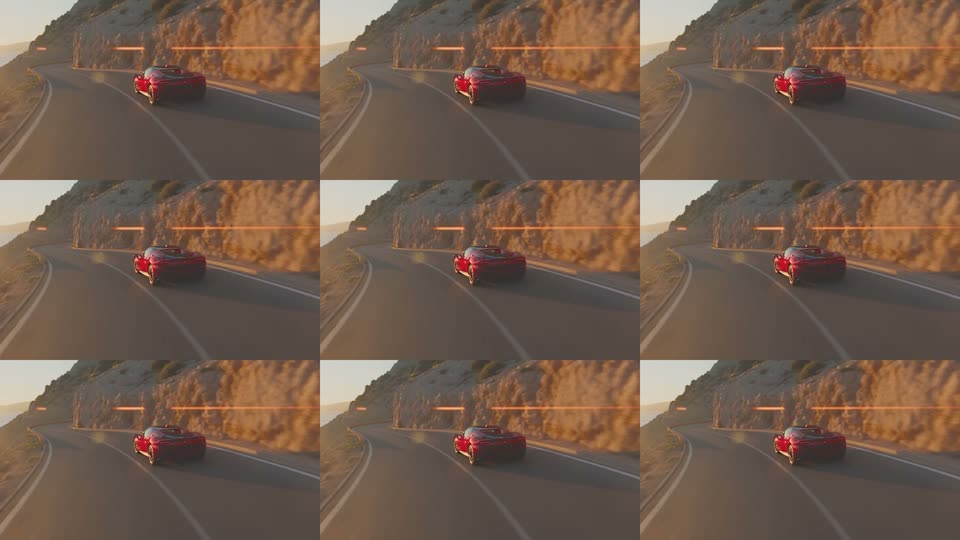
Zoom Tile Out
The picture splits into tiles on the cut.
-
Zoom Mirror
Punch in through a mirrored picture.
-
Zoom In Blur
Zooms far into A through a soft blur.
-
Zoom Out Blur
B pulls back from far in through a soft blur.
-
Zoom In Flash
Zooms far into A with a white flash.
-
Zoom Out Flash
B pulls back from far in with a white flash.
-
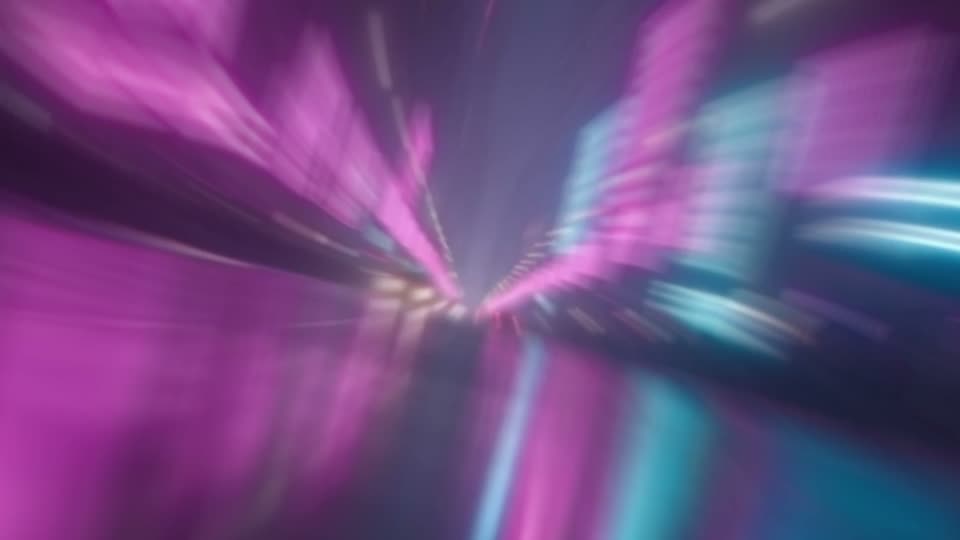
Zoom In Spin
Zooms far into A with a turn.
-

Zoom Out Spin
B pulls back from far in with a turn.
-
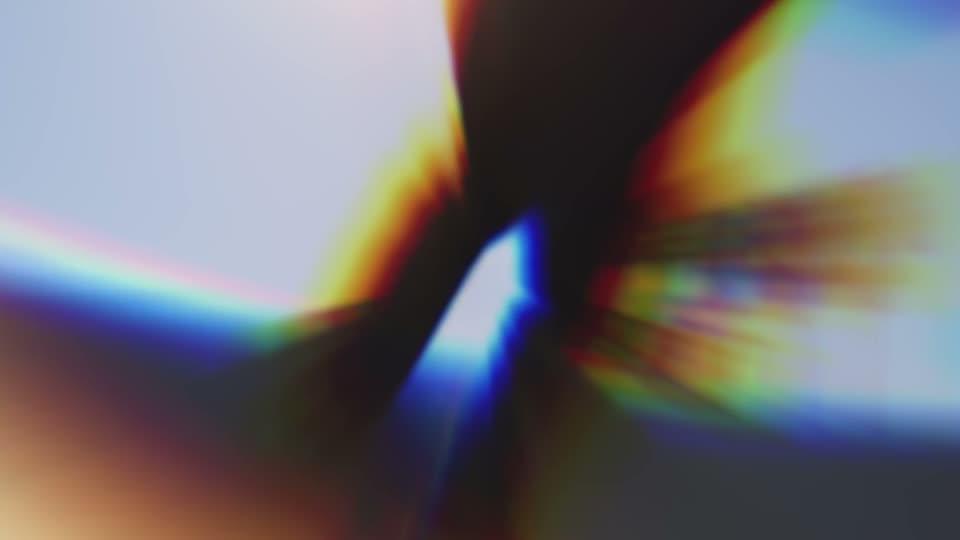
Zoom Warp Speed
A very fast, very deep punch with colour streaks.
-
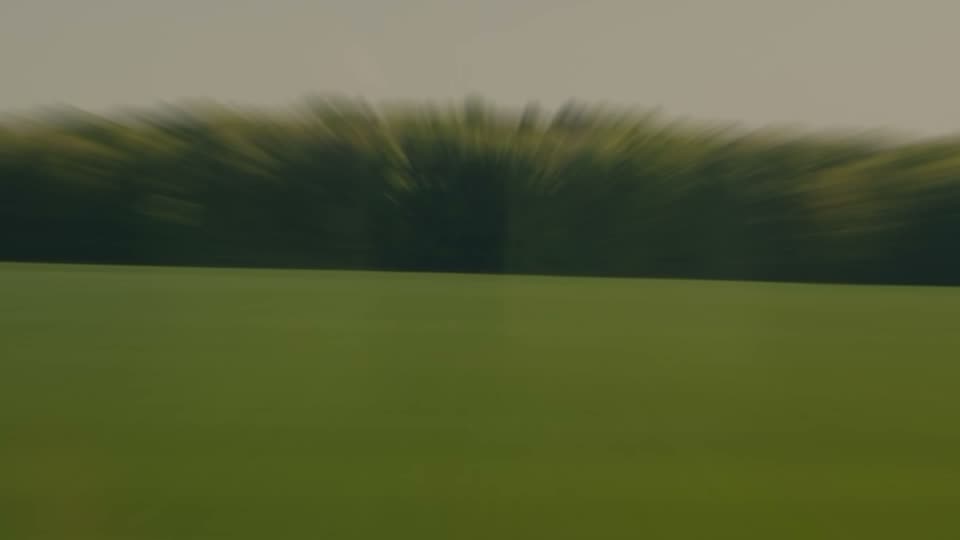
Zoom Dip
Punch in through a dip to black.
-
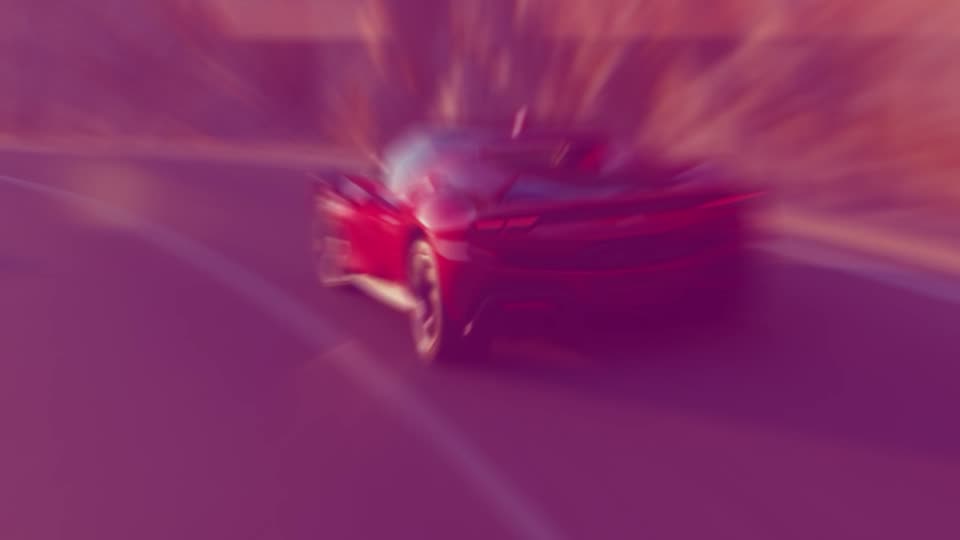
Zoom Neon
Punch in with a pink and blue neon flash.
-
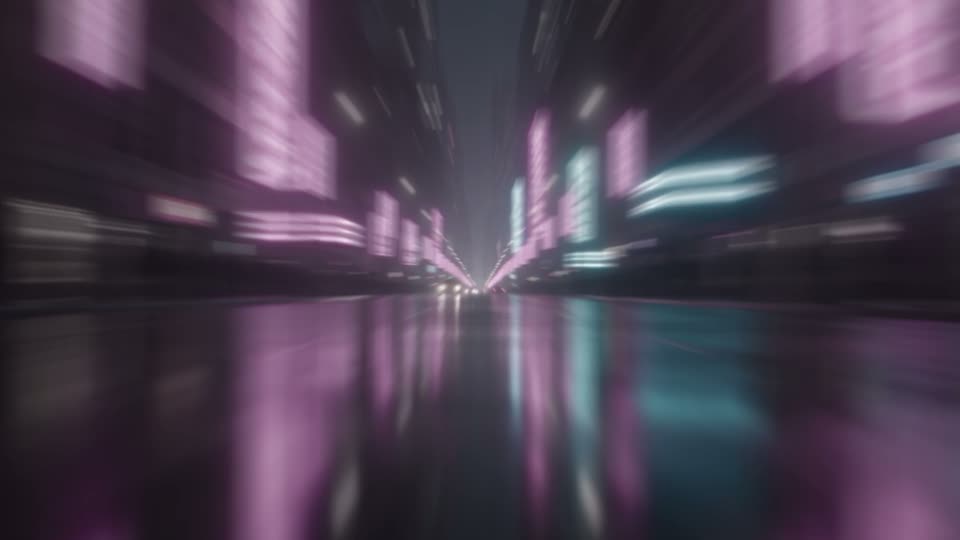
Zoom Mono
Punch in while the colour drains away.
-

Zoom Tilt Left
Punch in with a slight tilt left.
-
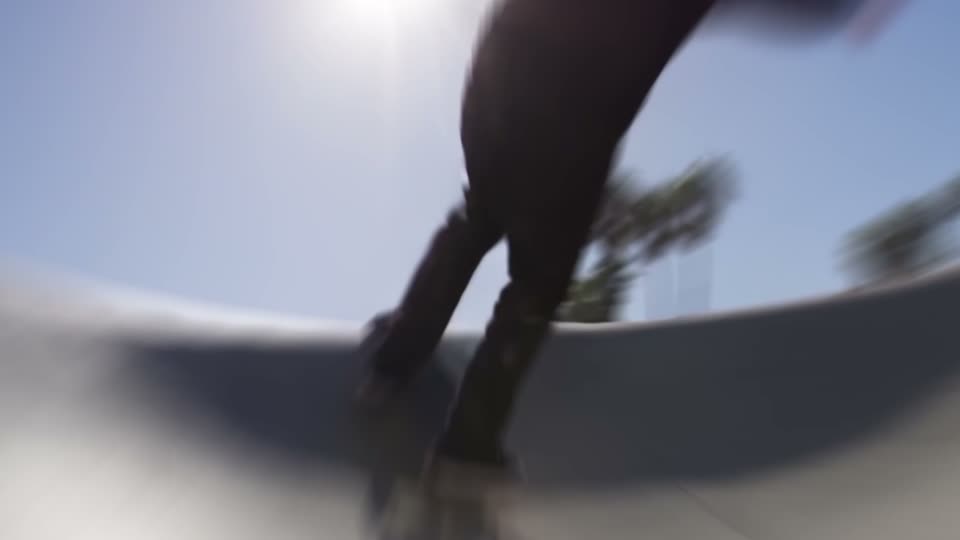
Zoom Skew Left
Punch in with a sideways lean left.
-
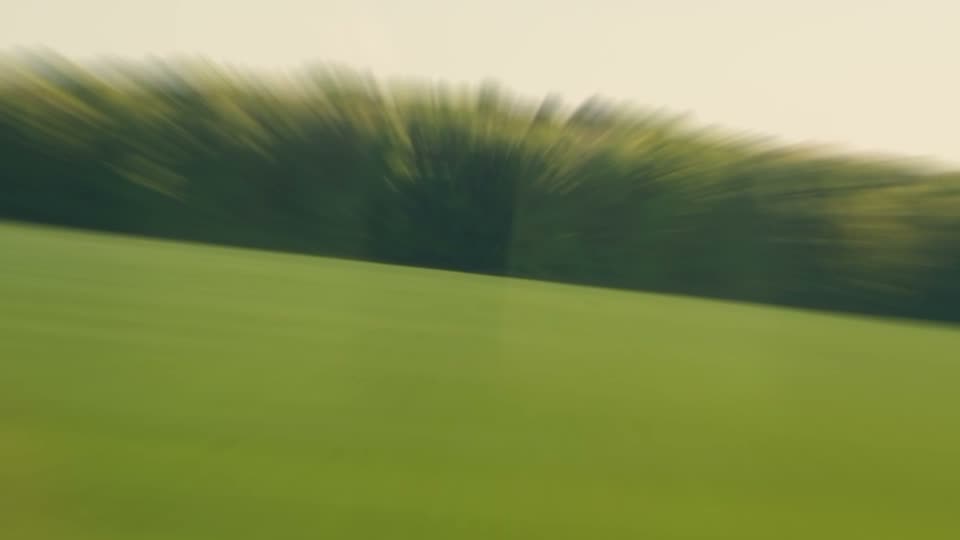
Zoom Tilt Right
Punch in with a slight tilt right.
-
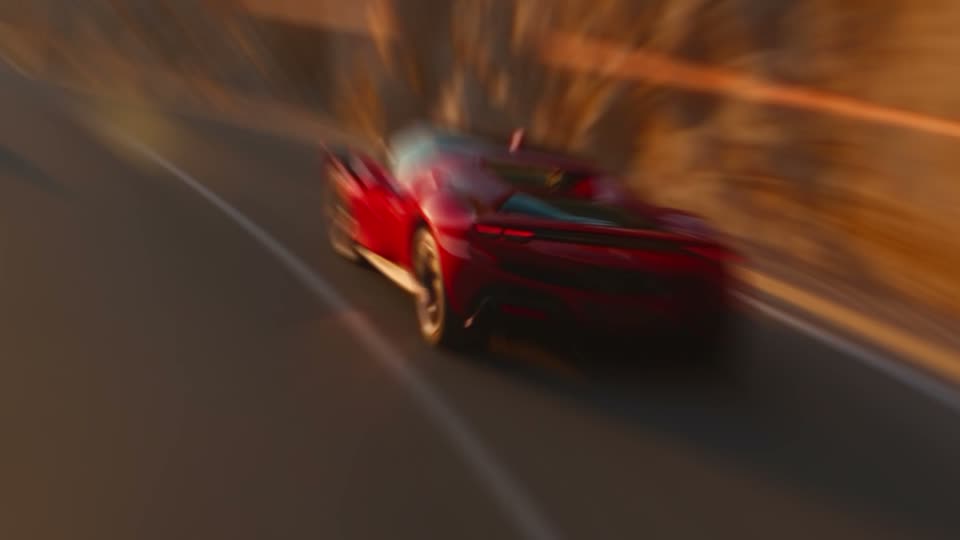
Zoom Skew Right
Punch in with a sideways lean right.
-

Zoom Hyperlapse
Jumps in and back out in quick steps with blur.
-
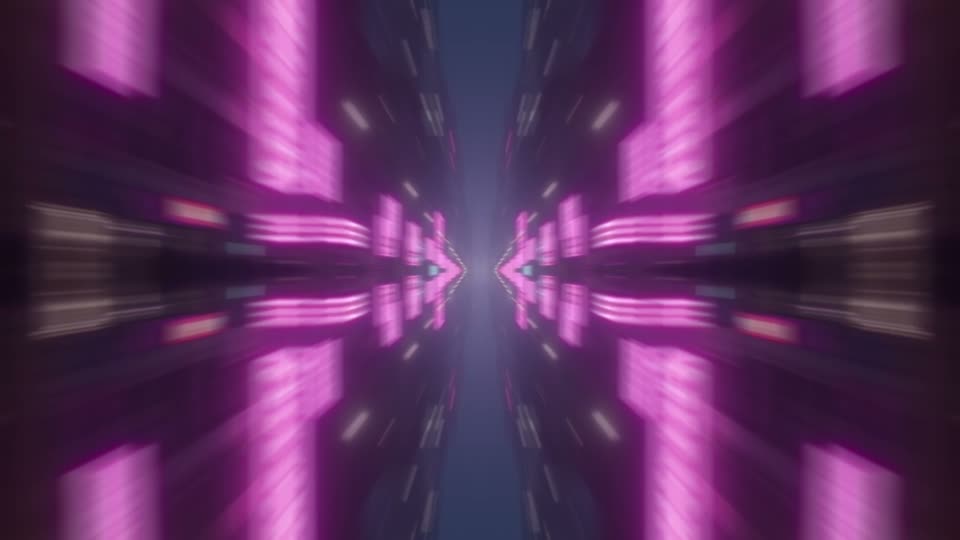
Zoom Kaleido
Punch in through a four-way mirror.
The better deal
All 200 transitions in one pack for $39.99 $59.99
The six packs bought one by one come to 6 x $10.00 = $60.00. This pack's 40 transitions are part of the full pack.